 DOWNLOAD Win
 DOWNLOAD Mac
How to Change Language on Disney Plus: The Complete Guide
 Tessa Kirkland
- 11 February, 2026
- Blog
Are you watching The Mandalorian in German? Or did all Disney+ menus suddenly switch to Spanish? Here's what's happening: Disney+ uses two independent language settings: Playback Language setting and App/Profile Language setting. Changing one won't automatically fix the other. Don't worry, though- this guide will show you how to change Disney Plus language on your TV or phone.
Part 1. How to Change Disney+ Audio and Subtitles Language
>> 1.1 Change Disney+ Audio and Subtitles Language on TV
A quick note: The exact location of Disney Plus Language icons might look a little different depending on your TV or device.
If you're using Disney+ on a Smart TV, streaming device (like Roku or Apple TV), or a game console, you can change the audio and subtitles language directly from the video you're watching. This setting is separate from the app's profile language. Here's how to do it:
Step 1 First, open the Disney+ app on your TV and begin playing a show or movie, like The Mandalorian.
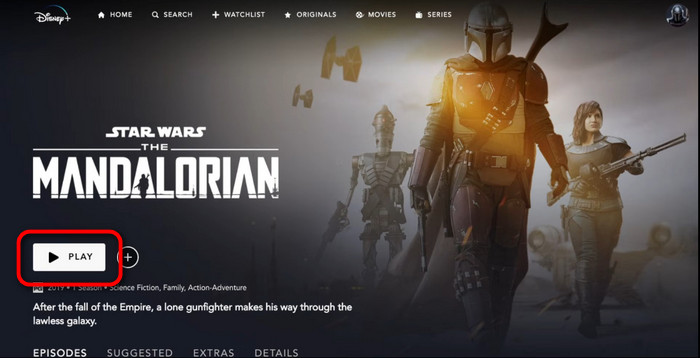
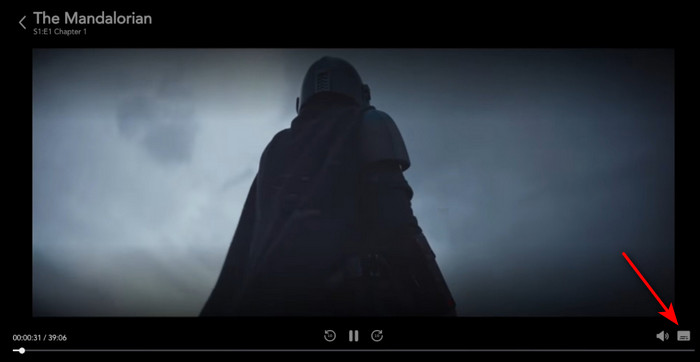
Step 2 While the Disney+ video is playing, press a button on your remote to bring up the on-screen controls (pause the video, or just press the select/OK button). You'll see a progress bar and icons appear, usually at the bottom of the screen.
Step 3 Look for the Speech Bubble or Caption icon (it often looks like this: 💬). You'll usually find it in the bottom-right corner. Select it with your remote.
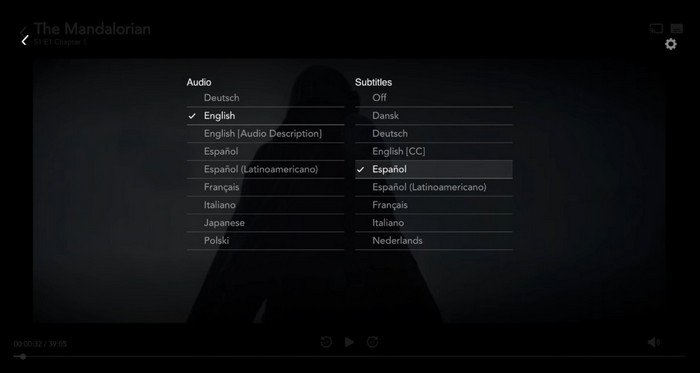
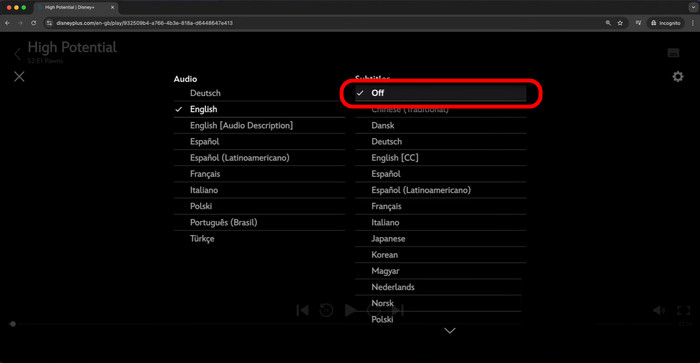
Step 4 A new menu will pop up with Disney+ Audio and Subtitles (or Closed Captions) sections.
Step 5 On new window, choose your preferred spoken language (for example, English, Original, or German). A checkmark will appear next to your current choice. Done! Now you have changed laguage on Disney Plus videos.
![How to Get Disney Plus on Samsung Smart TVs? [3 Ways]](/img/blog/get-disney-plus-on-samsung-smart-tv.jpg)
How to Get Disney Plus on Samsung Smart TVs? [3 Ways]
Want to watch Disney Plus on Samsung smart TV but the Disney+ app is not available on it? Here is a complete guide on how to watch Disney+ videos on any kind of Samsung smart TV.
>> 1.2 Change Disney+ Audio and Subtitles Language on Phone
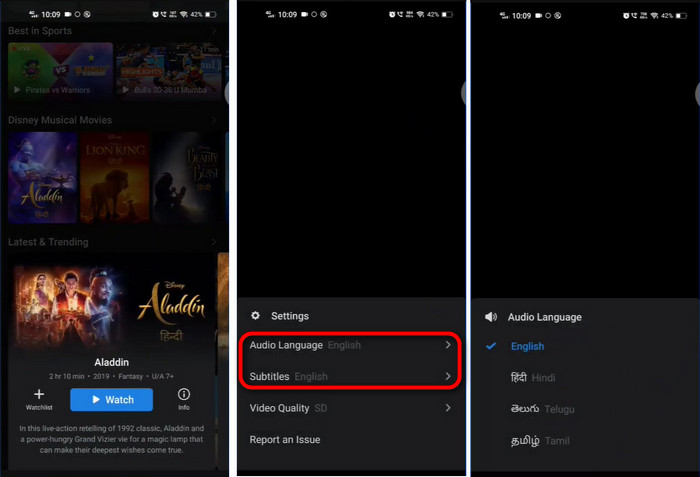
On your phone (iPhone or Android), you can change the audio and subtitle language for each show or movie you watch.
Step 1 Open the Disney+ app on your smartphone and start playing a video.
Step 2 Tap once on the screen (or pause the video) to bring up the player controls.
Step 3 Look for the Caption icon in the top-right corner. Tap it to open a menu where you can select your preferred audio or subtitle language.
Tips: How to Turn On or Off Disney+ Subtitles
Step 1 Play a Disney+ movie or shows, and tap the screen.
Step 2 Also click the caption icon (Disney+ video language icon), from there, turn off or turn on the subtitles.
How to Download Disney Plus Video to Android Phone?
Want to watch Disney Plus on Samsung smart TV but the Disney+ app is not available on it? Here is a complete guide on how to watch Disney+ videos on any kind of Samsung smart TV.
Part 2. How to Change Disney+ Profile Language
The language you see in all the Disney Plus menus, buttons, and settings is tied to your individual Disney+ profile. This setting is for each profile, not for your whole account or device.
And if you change this language setting, it will be updated on every device where you use that profile (like your TV, phone, or computer). It may also affect which audio and subtitle options for video playback. Here's how to change your Disney Plus interface language:
Step 1 Open the Disney+ app or website and log in.
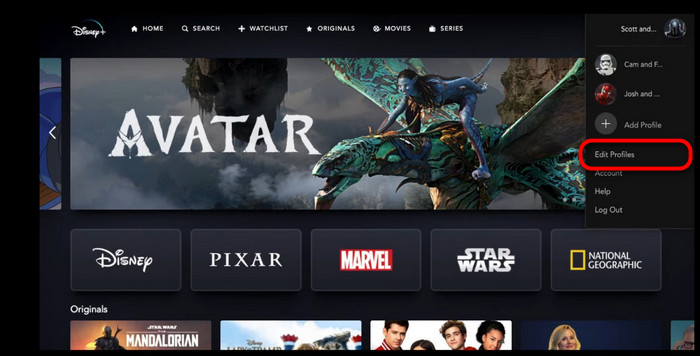
Step 2 Tap your profile icon, and select Edit Profiles.
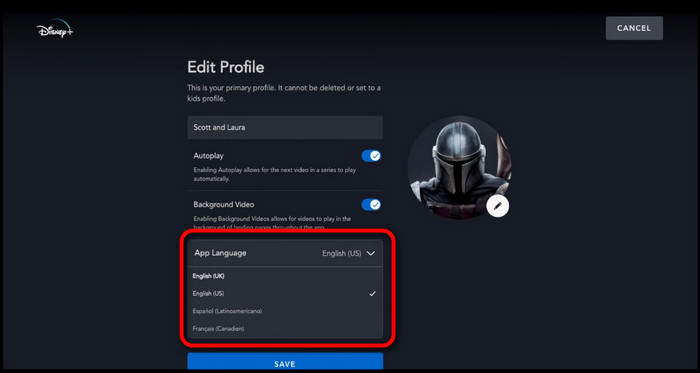
Step 3 Scroll down in the profile settings until you see App Language. Here you can pick your preferred language from the list (like English, Español, Deutsch). Then Save.
Part 3. FAQs to Change Disney Plus Language
Still confusing on changing languages on Disney+? Here are some answers to your questions:
Q1. Why Can't I change Disney+ language?
Problem 1: The Language Option is Missing
If you're missing a specific audio or subtitle option while watching a Disney+ show, it's unlucky. Actually, not every Disney+ movie or show is available in every language. This depends on the title, your country, and licensing rules.
You can change your Disney+ profile's Language (to English, for example), then restart the show or the app. Some users said this method may unlock more audio and subtitle choices.
Problem 2: The language changed, but doesn't take effect?
Usually, when you've changed the language settings (and restarted the platform sometimes), the language setting should happen right away. If it didn't, try this:
- Solution 1. Restart your device, and update the Disney+ app to the latest version.
- Solution 2. Log out of your Disney+ profile completely and then log back in.
- Solution 3. Close the Disney+ episode or movie completely and start it over.
Problem 3: Video automatically starts in the wrong language?
Disney+ often picks a default language for you. It might use your profile's App Language, the main language for your account, or even a version based on your location.
So if your Disney+ show might automatically start in a dubbed version, you will need to manually change it back from its language settings.
![10 Best Free Dubbed Anime Websites to Watch Online [2026 Update] ?](/img/blog/free-anime-websites-dubbed.jpg)
10 Best Free Dubbed Anime Websites to Watch Online [2026 Update]
Looking for free dubbed anime websites? Check out the 10 best dubbed anime websites and start streaming your favorite anime!
Q2. Languages Not Available for Certain Disney+ Movies?
Yes. This is normal and happens to many Disney+ videos. Not every title is dubbed or given subtitles in every language. And lately, Disney+ has been creating fewer dubbed versions for newer or international shows to save money.
Q3. How to Reset Default Language Settings on Disney+?
There isn't one single "reset language" button on Disney Plus. You will have to change Disney+ App language or Disney+ playback audio & subtitle language manually.
Q4. Do Different Profiles Have Different Default Languages?
Yes, each Disney+ profile can have its own language for the app's menus. This language setup is independent. This means you can use one profile for watching Disney+ dubbed videos, another for your mother language.
Q5. How to Download Disney+ Videos in Different Languages?
If you want to download Disney+ movies, shows, or anime in different languages, you can try DispCam Disney+ Video Downloader. It's a separate program to download any content from Disney+ and save original audio & subtitles. You can use this tool to save a Disney+ video with a specific language combination built in.
Learn more about DispCam >>
A professional tool that can help you download movies and TV shows from Disney+, and enjoy the content offline at any time.
How to Download Disney+ Video in Your Preferred Language
Step 1 Download and install DispCam Disney+ Video Downloader.
Step 2 Use the search bar inside DispCam and search for a Disney+ movie.
Step 3 Tap the Download icon at bottom-right. In the pop-up window, you can customize:
- Quality: Pick your resolution (e.g., 1080p).
- Audio Track: Select your preferred spoken language (e.g., English Original, German Dub, Spanish).
- Subtitles: Choose your subtitle language. You can choose "Hardcoded" to burn them into the video.
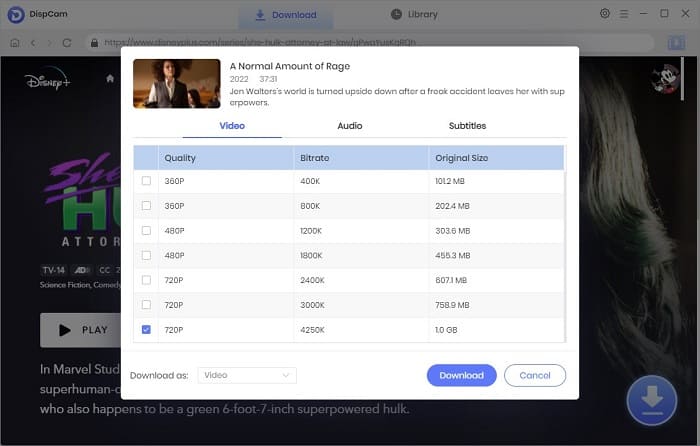
Step 4 Click Download to get the Disney+ video as well as the subtitles offline.
Step 5 Now, the Disney+ video will save to a folder on your computer. You can open it with any media player (like VLC). There, you can switch between the audio and subtitle tracks you selected.
Download Disney+ Hotstar Videos on Windows PC (2026 Latest)
There's no Disney+ Hotstar app for Windows PC. But you can use DispCam to download Disney+ Hotstar movies or shows to computer.
Note: The free trial version of DispCam allows you to download the first five minutes of each video. To download the full video, you may need to subscribe to DispCam to unlock the limitation.
The End
Disney Plus have 2 separate language settings: playback (audio and subtitles) and profile (app interface). Check the detailed steps above to select your preferred language.
Tessa Kirkland | Senior Writer